![digital-skillstruck-brandmark-white-blue@192x.png]](https://support.skillstruck.com/hs-fs/hubfs/digital-skillstruck-brandmark-white-blue@192x.png?height=40&name=digital-skillstruck-brandmark-white-blue@192x.png)
Last updated - April 7, 2026
If a student’s progress isn't reflecting their completed lessons, you can manually trigger an update. Use the following steps to refresh progress at either the individual student or section level.
Student Level
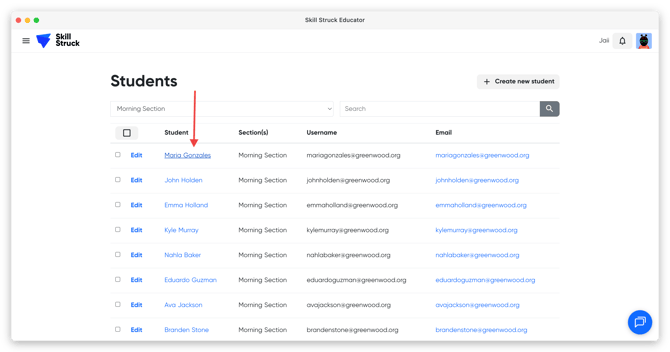
- On your Educator Portal, navigate to the Manage Students section.
- Click the name of the student whose progress is not updating.
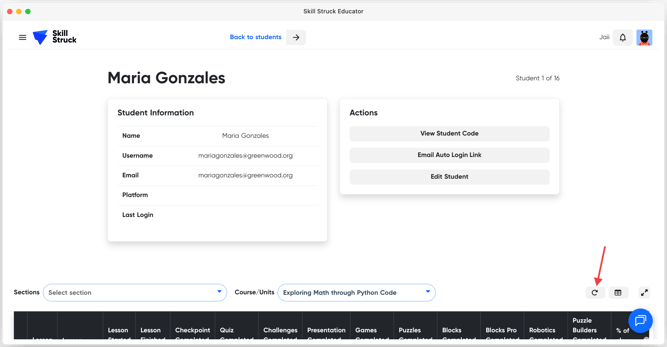
- Scroll down to the Student's Progress section. On the right of this section, click the refresh button to update progress.
Note: Progress may not update if a student’s code hasn't met all specific challenge or checkpoint requirements. If an attempt isn't showing as complete, first verify that the student has successfully passed all requirements for that section.
Section Level
- Within the Educator Portal navigate to the Student Progress Page.
- Choose the section for the progress update.
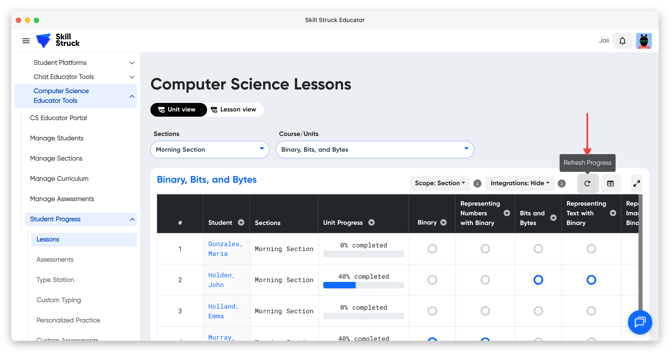
- Click on the refresh button in order to update the section's progress.
- You should see any missing data appear if it was completed by the student.
If your student's progress is still not updating after following these steps reach out to Skill Struck support via chat or support@skillstruck.com for assistance.