![digital-skillstruck-brandmark-white-blue@192x.png]](https://support.skillstruck.com/hs-fs/hubfs/digital-skillstruck-brandmark-white-blue@192x.png?height=40&name=digital-skillstruck-brandmark-white-blue@192x.png)
Last updated - May 18, 2026
For a brief guide, please view this document.
Accessing the Orbit platform
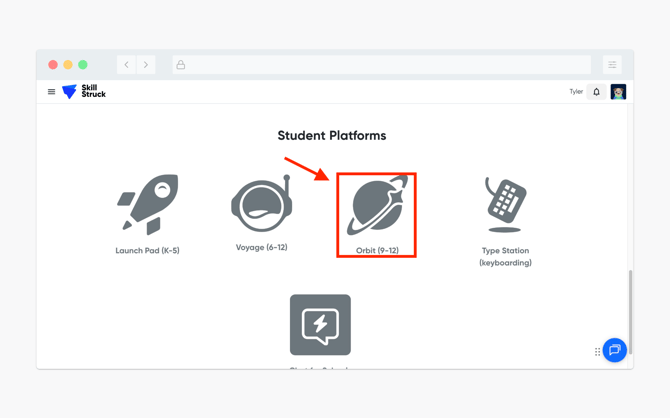
- From your Educator Portal, navigate to Student Platforms and click on Orbit.
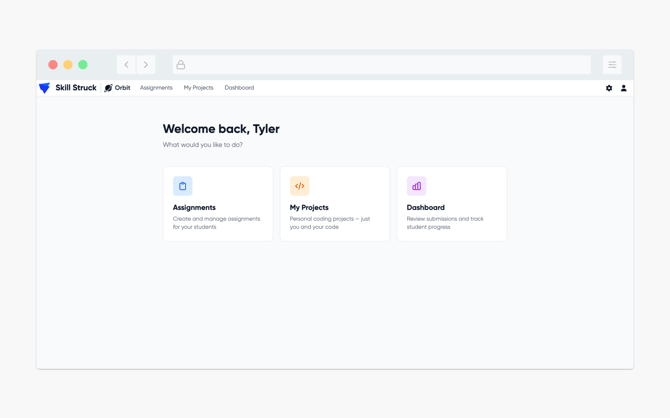
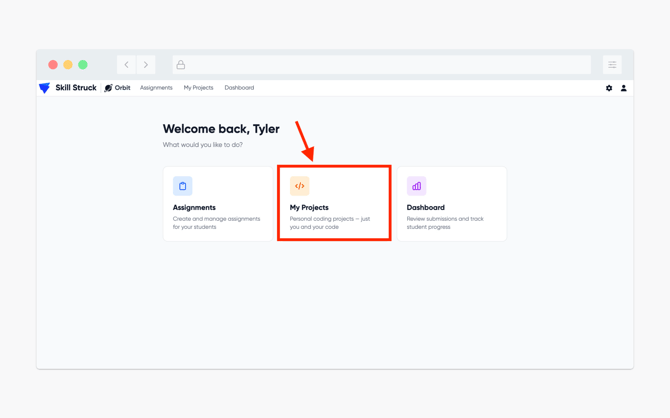
- You will be directed to the Orbit landing page. From here you are able to create Assignments, access My Projects, and view the Dashboard.
Creating an Assignment in Orbit
-
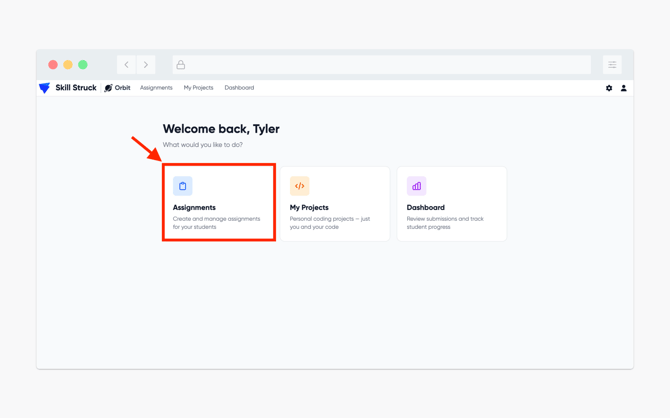
From the Orbit homepage, click on the Assignments tab.
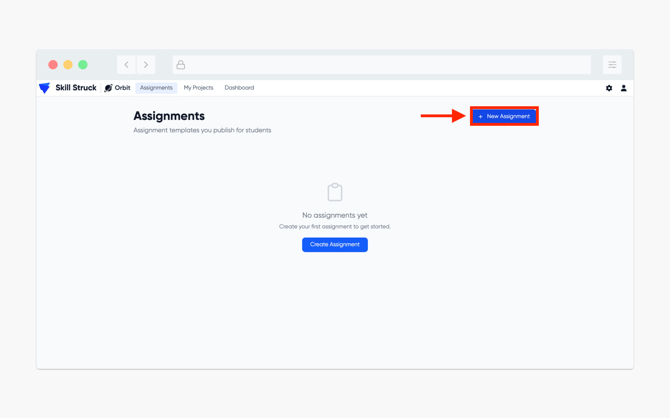
- Click on the + New Assignment button.
- assignment Name
- Language (HTML/CSS/JS, Python, JavaScript, Java, C++)
- Due Date
- Max Grade
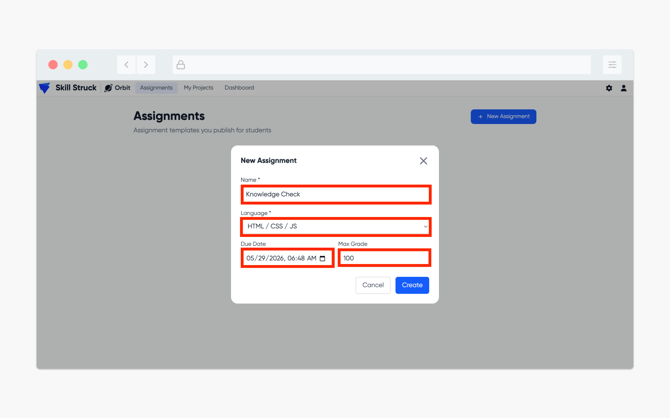
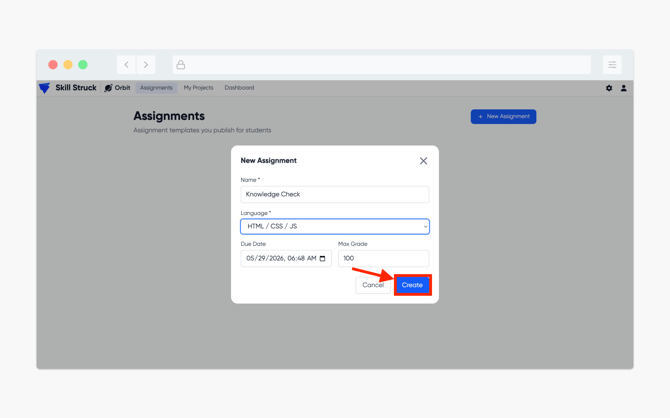
4.After filling out Assignment information, click Create.
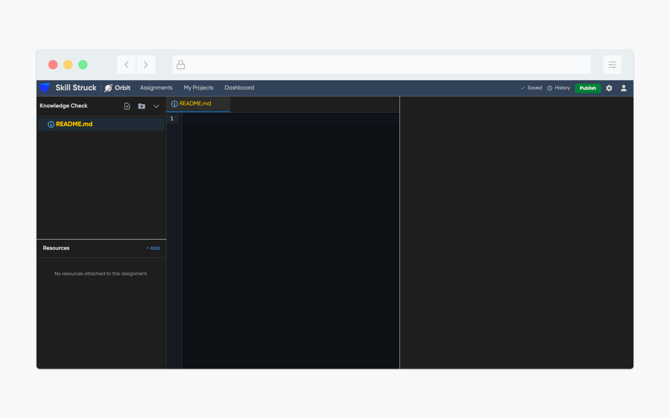
5. After clicking Create, you will be directed to the Orbit platform. A README file will appear to input the instructions of your assignment. This file is read only and will be uneditable by students.
6.After inputing Assignment information in the README file, you might want to provide additional files. To do so, click on the file button.
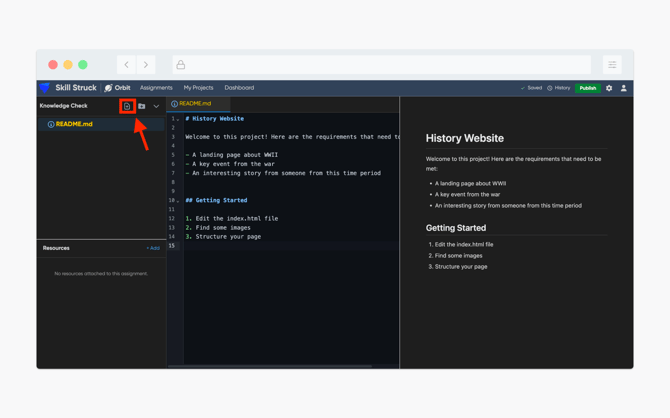
7. A New file window pop-up will appear. Name your file and click Create.
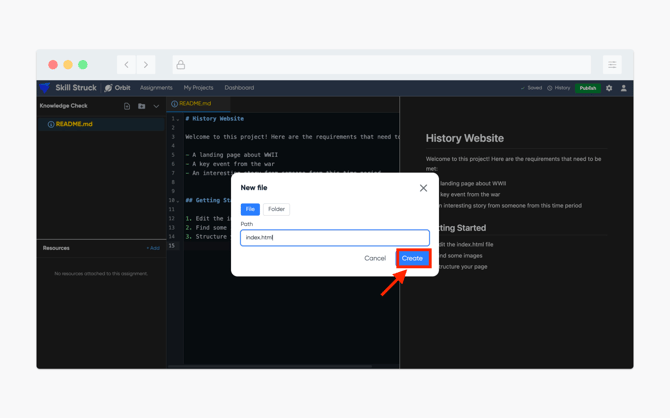
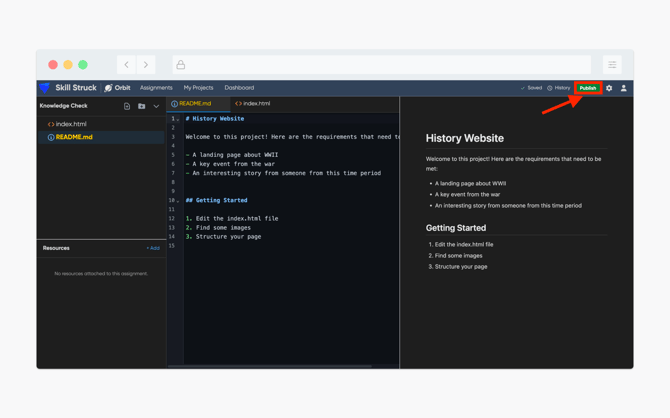
8. When you are ready to Publish the assignment, click the Publish button in the top right corner.
9. The Assignment is now published. You will also be provided with the option of copying the assignment link to provide to your students!
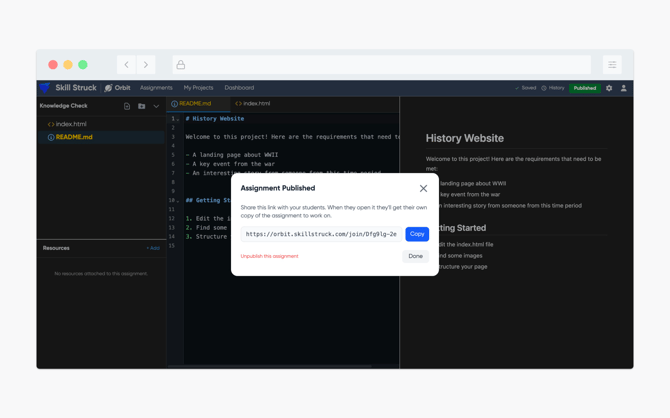
This assignment link will need to be entered on the student's Orbit to access the assignment created.
Creating a Project in Orbit
-
From your Orbit homepage, select My Projects.
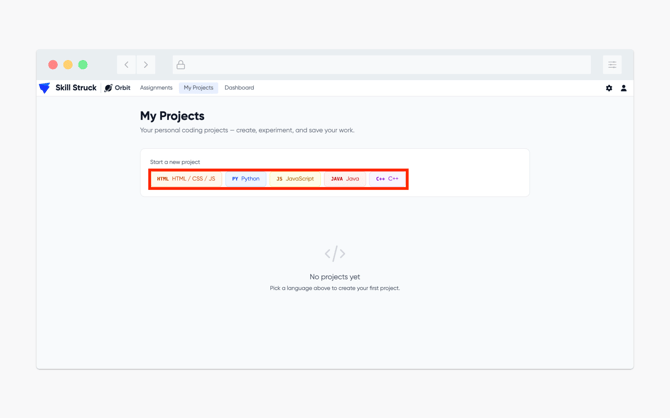
- From the My Projects page, select the applicable language for your project.
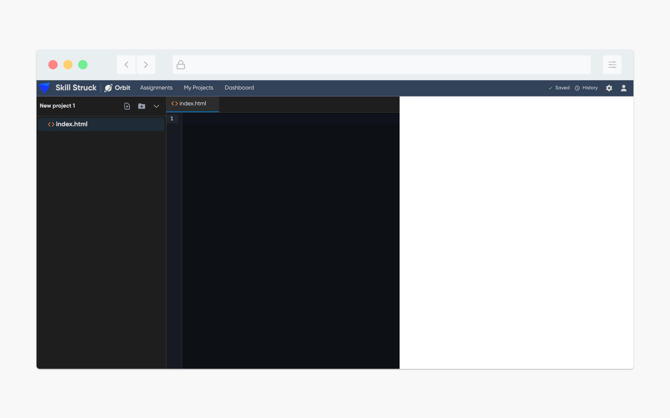
- After selecting the applicable language, you will be directed to a corresponding file page.
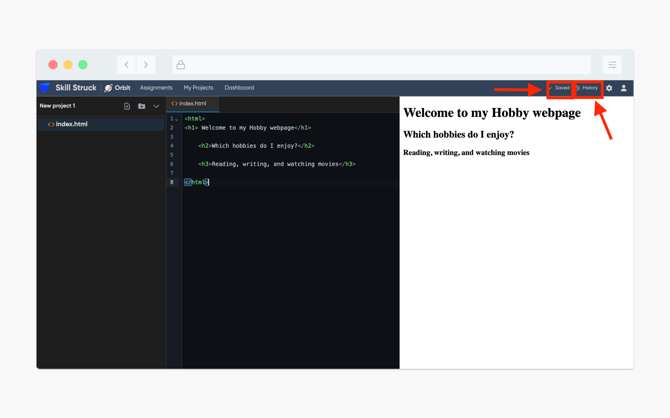
- Completed work will auto-save! You are also able to view the history of code type by clicking on the History button.
Dashboard View
-
From the Orbit homepage, click on Dashboard.
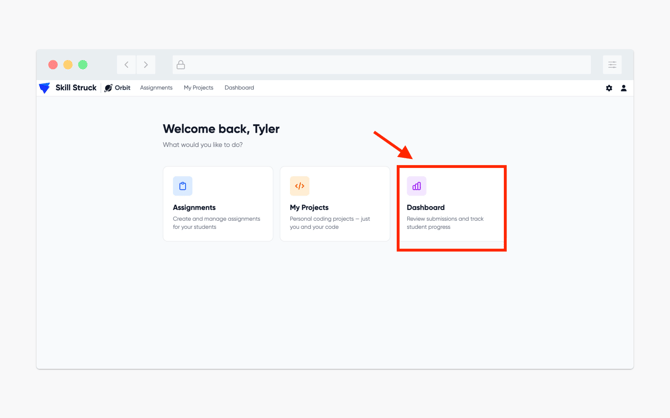
- On the Dashboard view there are two clickable options, Assignments and Students.
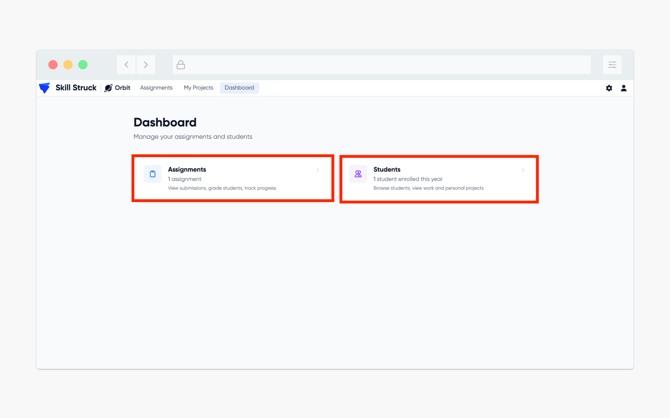
- In the Assignments section, it will show all created assignments. You will also be able to view if the assignment is published or un-published. Also the number of students that have accessed the assignment, how many have submitted, and how many have been graded.
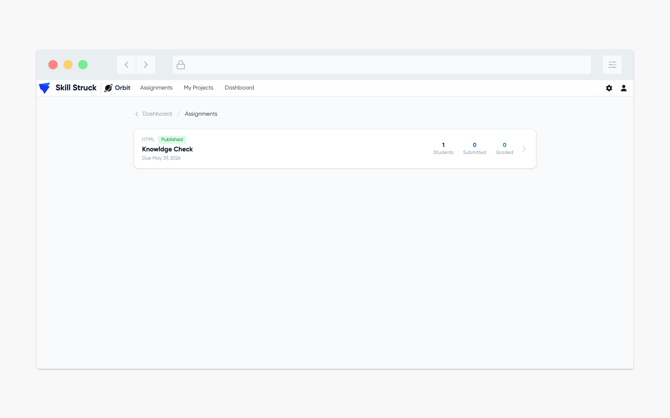
- Clicking on the specific assignment will give a more detailed breakdown of that information listed above.
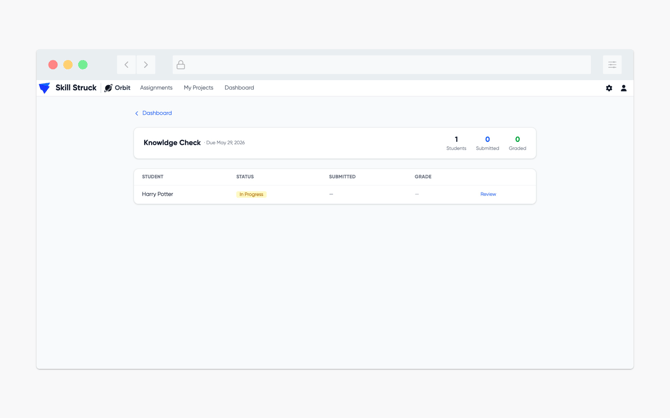
- Heading back to the Orbit homepage and clicking on Students will show the students that have copied the generated assignment link and have opened the assignment.
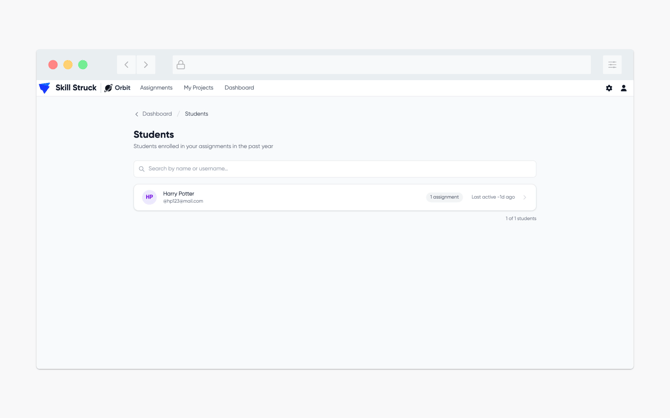
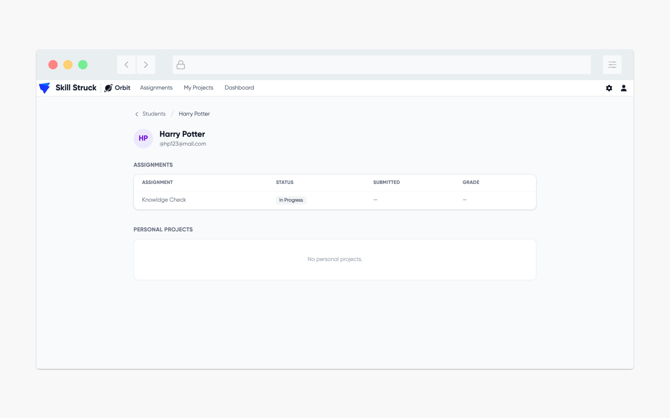
- Clicking on a specific student will provide additional information such as the status of an individual assignment, whether that assignment has been submitted, and if the assignment has been graded. On the student view it will also show if they have any current projects.