![digital-skillstruck-brandmark-white-blue@192x.png]](https://support.skillstruck.com/hs-fs/hubfs/digital-skillstruck-brandmark-white-blue@192x.png?height=40&name=digital-skillstruck-brandmark-white-blue@192x.png)
Last updated - May 7, 2026
These settings currently only apply to the Computer Science Educator Portal.
These instructions are intended to resolve grading issues caused by Canvas-wide problems. We recommend following these steps only if necessary.
1. Log in to your Educator Portal.
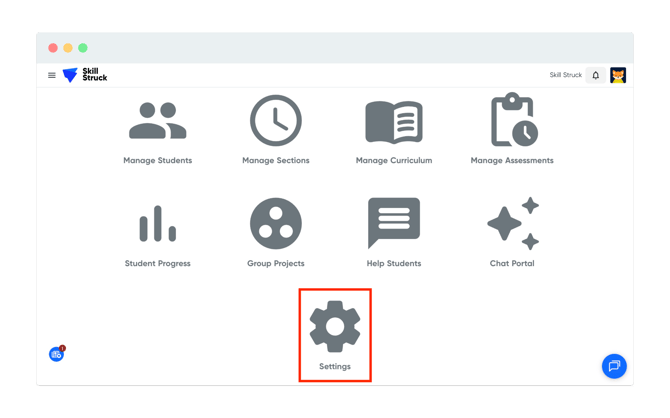
2. Navigate to your Settings page:
3. Click on the arrow across from Advanced:
-3.png?width=670&height=419&name=screenshot-rocks%20(1)-3.png)
4. Select Canvas API Options:
-4.png?width=670&height=419&name=screenshot-rocks%20(2)-4.png)
5. Click on Update Canvas Access Token to add a token. An unexpired token is required before syncing grades:
-4.png?width=670&height=419&name=screenshot-rocks%20(6)-4.png)
-3.png?width=670&height=419&name=screenshot-rocks%20(4)-3.png)
5. Click Sync Missing Submissions for a Course:
-4.png?width=670&height=419&name=screenshot-rocks%20(3)-4.png)
6. Select a Canvas course to sync grades to:
-4.png?width=670&height=419&name=screenshot-rocks%20(5)-4.png)
7. Missing submissions will now be synced to Canvas!
If you select Sync All Grades for a Course, the process may take several minutes for courses with many assignments and students.