![digital-skillstruck-brandmark-white-blue@192x.png]](https://support.skillstruck.com/hs-fs/hubfs/digital-skillstruck-brandmark-white-blue@192x.png?height=40&name=digital-skillstruck-brandmark-white-blue@192x.png)
Last updated - May 15, 2026
- Select the Canvas course you would like to create an assignment for.

- Click "Assignments."

- Click "+ Assignment" to create a new assignment.

- Scroll down to the "Submission Type" dropdown and select "External Tool."

- Click "Find."

- Select "Skill Struck Assignment."

- Click "</> Computer Science."

- Navigate through the menu to find the activity you would like to add.
- In the screenshot below, the user clicks "Web Development," "HTML 1," "HTML Basics," and "Lesson Checkpoint."
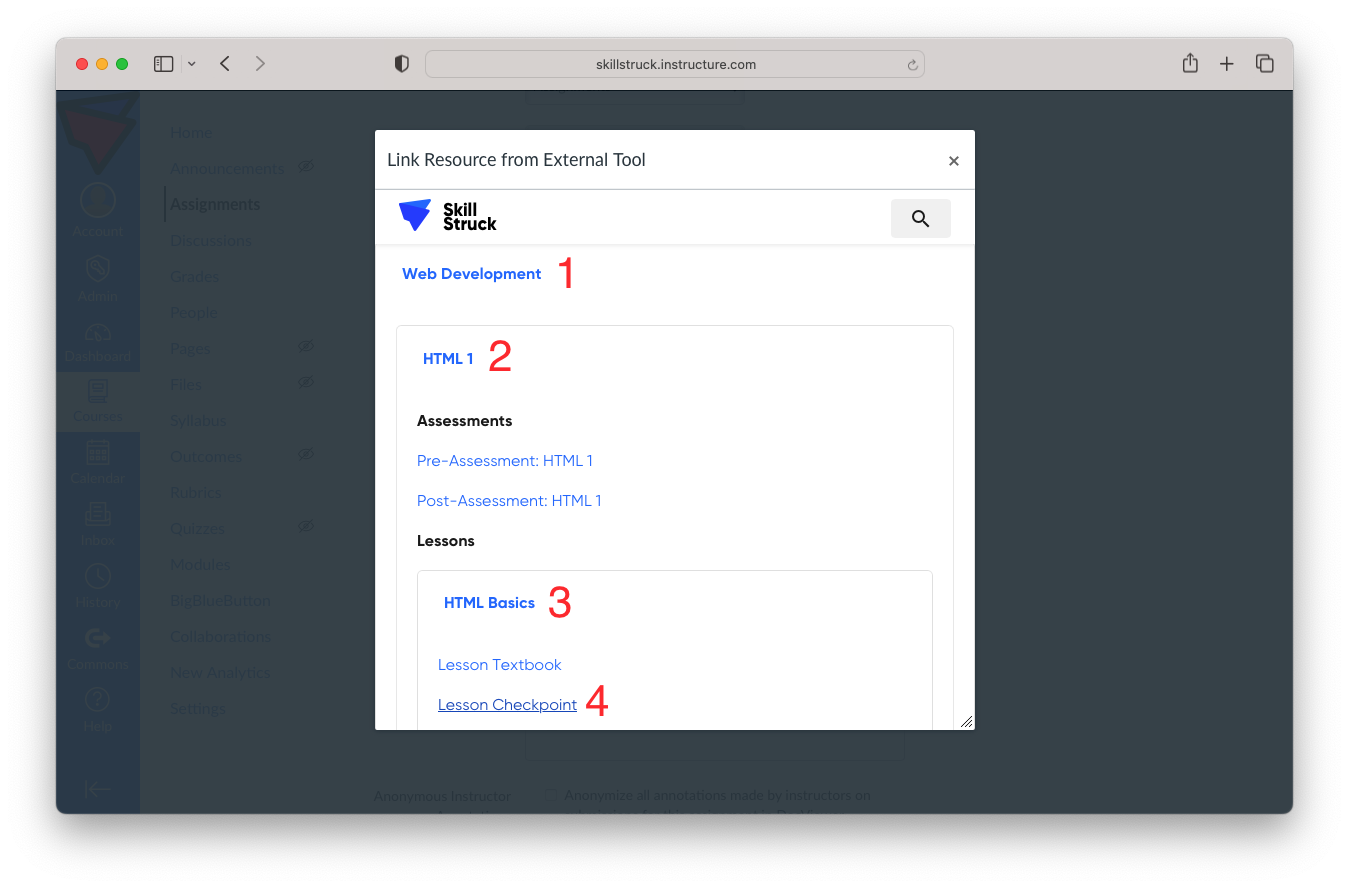
- In the screenshot below, the user clicks "Web Development," "HTML 1," "HTML Basics," and "Lesson Checkpoint."
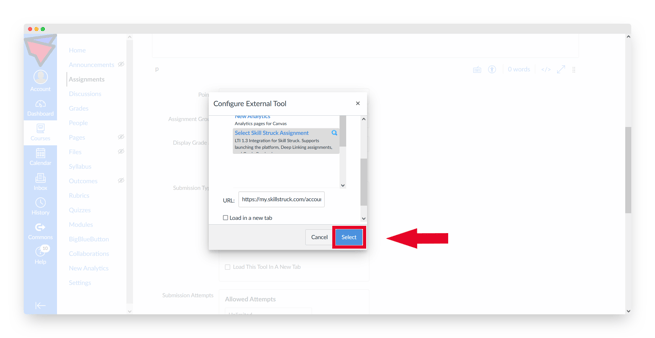
- The activity you select will be populated into the “URL” field.

- Click "Select."
- Update the assignment settings according to your preference. When finished, click "Save" or "Save & Publish."

NOTE: Grades will only pass back for Assignments with the "Submission Type" set to "External Tool."