![digital-skillstruck-brandmark-white-blue@192x.png]](https://support.skillstruck.com/hs-fs/hubfs/digital-skillstruck-brandmark-white-blue@192x.png?height=40&name=digital-skillstruck-brandmark-white-blue@192x.png)
Last updated - March 27, 2026
Currently, there is no direct option to delete blocks such as chests or doors once they have been placed in the puzzles. However, there is a workaround to effectively remove these blocks.
Use an Empty Tile:
Method 1 (editing a saved puzzle):
- Click on the name of a puzzle in your Custom Puzzles list.
- To remove a block, select an empty square (blank tile) from the menu.
- Drag the empty tile over the block you wish to delete. This action will replace the existing block with the empty tile, effectively removing it from the puzzle.
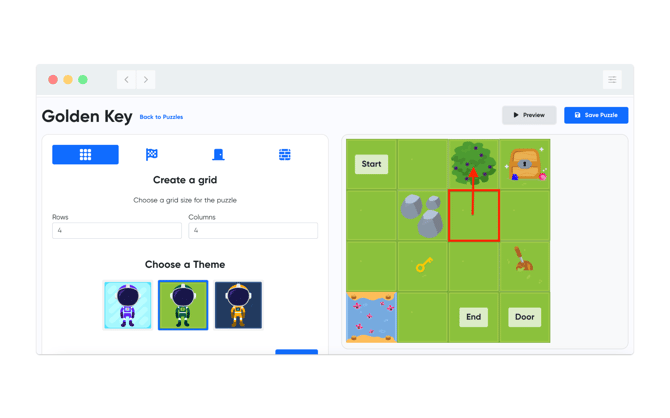
Method 2 (editing a puzzle while building it):
After starting a new puzzle, on the Drag and Drop screen (when adding obstacles, traps, and treasure), if you place a block, but want to remove it, follow these steps:
Use the blank block from the group of blocks to drag and cover the block you want to delete.
-4.png?width=670&height=419&name=screenshot-rocks%20(12)-4.png)
If you have any further questions or need assistance, please reach out to support.