![digital-skillstruck-brandmark-white-blue@192x.png]](https://support.skillstruck.com/hs-fs/hubfs/digital-skillstruck-brandmark-white-blue@192x.png?height=40&name=digital-skillstruck-brandmark-white-blue@192x.png)
Last updated - April 7, 2026
In the Admin Portal, there are two ways to create a section. You create a section attached to your account or you can create a section attached to a school.
Creating a Section via Manage Sections
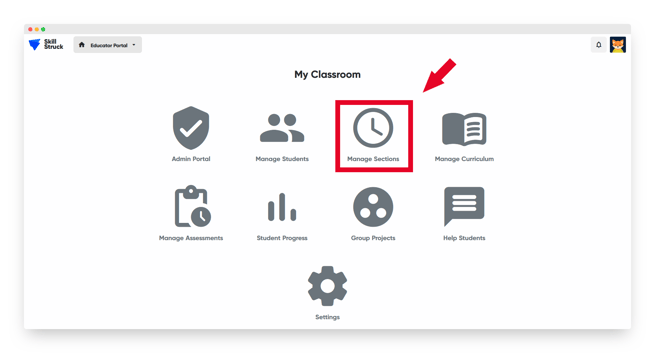
- Navigate to your Admin Portal homepage and click "Manage Sections."
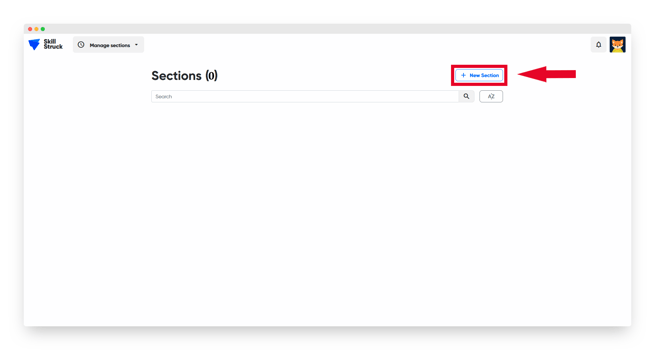
- Click "+ New Section."
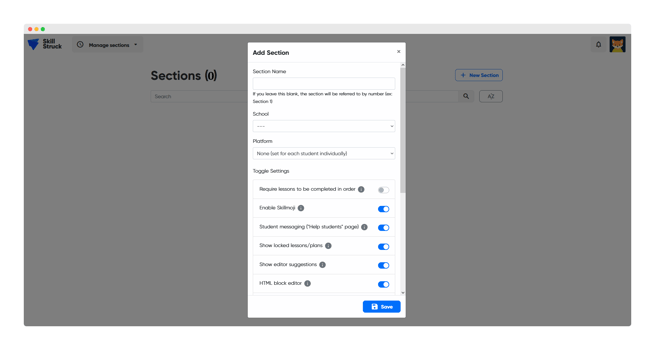
- In the window that pops up, enter the section name, school, and platform.
- Click "Save."
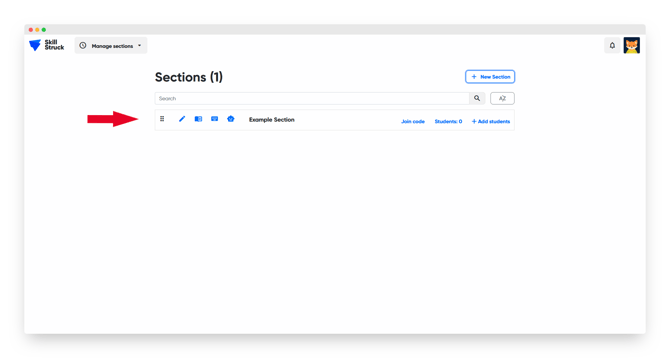
- Now the newly created section will populate on your "Manage Sections" page.
Creating a Section from the Admin Portal
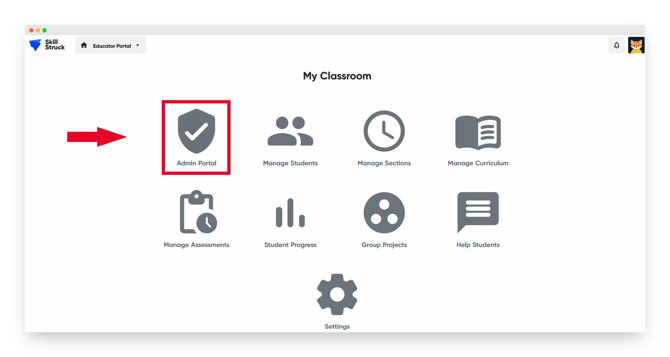
- Click "Admin Portal" from your account homepage.
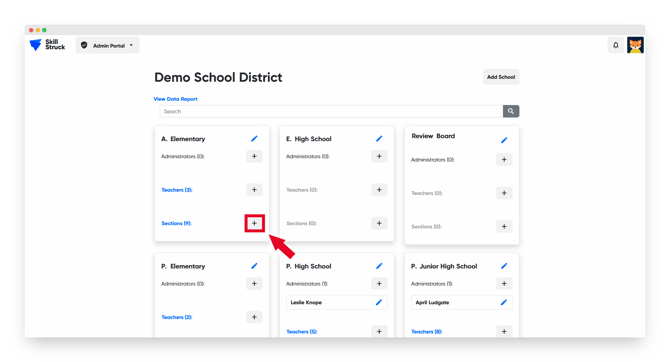
- Navigate to the school you would like to add a section to and click "+."
- Type the name of the section and select the teacher you would like to be attached to the section.
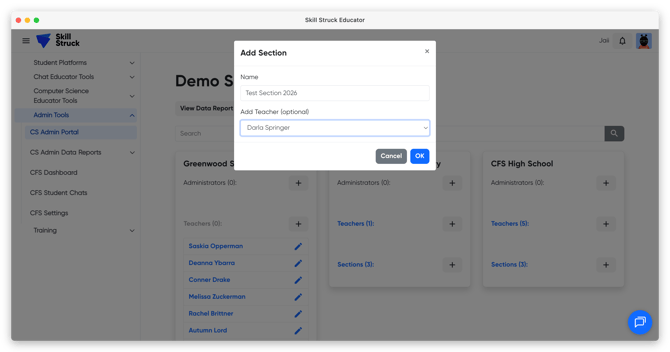
- Click "Save" to save a section to a school.
This section will now appear in the Educator's account and under the Sections list for the school.