![digital-skillstruck-brandmark-white-blue@192x.png]](https://support.skillstruck.com/hs-fs/hubfs/digital-skillstruck-brandmark-white-blue@192x.png?height=40&name=digital-skillstruck-brandmark-white-blue@192x.png)
Last updated - July 9, 2026
This feature is currently only available on the Voyage platform and must be enabled by the educator in the section's settings.
How the validator processes your code
When submitting HTML or CSS code to a coding challenge, your code may be passed through our HTML Validator. This program checks if any syntax errors are present in your files and will not let you pass a challenge until they are fixed.
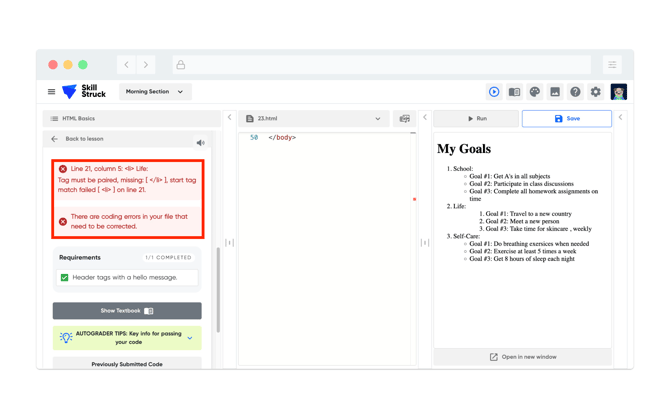
If the HTML Validator catches an error, it will display a red message above the requirements showing what error(s) are present in the code:
Our validator uses third-party packages to check HTML and CSS code, which include pre-defined rules that determine what gets flagged. Here is a list of enabled rules as of January 15, 2026:
| Rule: Description | Status (true/false) |
|
alt-require: The alt attribute of an img element must be present and alt attribute of area[href] and input[type=image] must have a value. |
true |
|
attr-lowercase: All attribute names must be in lowercase. |
true |
|
attr-no-duplication: Elements cannot have duplicate attributes. |
true |
|
attr-unsafe-chars: Attribute values cannot contain unsafe chars. |
false |
|
attr-value-double-quotes: Attribute values must be in double quotes. |
true |
|
doctype-first: |
false |
|
head-script-disabled: The |
false |
|
id-unique: The value of id attributes must be unique. |
true |
|
inline-style-disabled: Inline style cannot be used. |
false |
|
space-tab-mixed-disabled: Do not mix tabs and spaces for indentation. |
false |
|
spec-char-escape: Special characters must be escaped. |
false |
|
src-not-empty:The src attribute of an img(script,link) must have a value. |
true |
|
style-disabled: |
false |
|
tag-pair: Tag must be paired. |
true |
|
tag-self-close: Empty tags must be self closed. |
true |
|
tagname-lowercase: All HTML element names must be in lowercase. |
|
Any rules that are labeled as "False" or syntax issues not listed will not be caught by the HTML Validator.
How to toggle on/off the HTML Validator (Educators only)
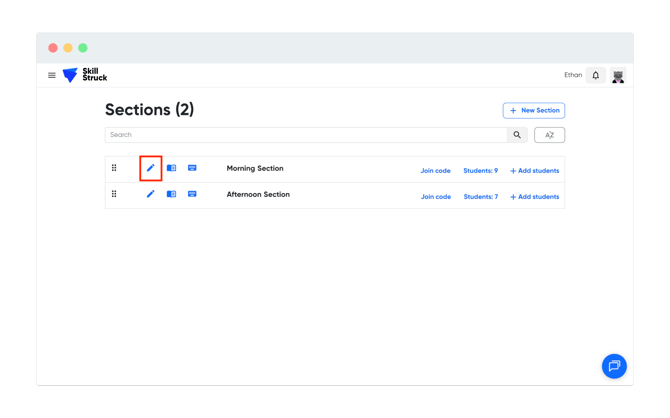
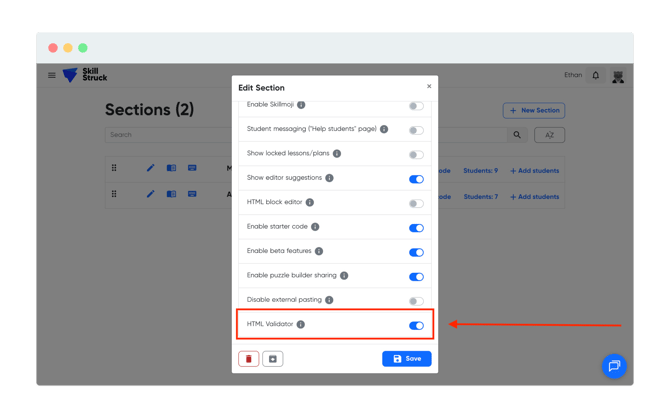
The HTML Validator setting can be toggled on or off in the Manage Sections page of the Educator Portal. Clicking the pencil iconlabeled Edit Section will open a pop-up window, and the toggle will be displayed when scrolling down.
HTML Validator Tips
- When the validator catches an error, it will display a red error message above the requirements showing what error(s) are present.
- The message will also include tips that will help students fix their code. Note that it may not state the exact problem.
- Remember that coding is specific. Make sure all code has correct spelling, syntax, and spacing.
- Just because code successfully runs in the terminal and meets all of the challenge requirements, it does not mean it will pass the validator.
- Check your code, double-check, and check again! If the submitted code is not passing, try to look for any bugs present. A bug can be as small as a missing bracket or a misspelled word!
If a student is unable to pass an activity, you can manually mark their challenge as complete in the Student Progress page of the Educator Portal.