![digital-skillstruck-brandmark-white-blue@192x.png]](https://support.skillstruck.com/hs-fs/hubfs/digital-skillstruck-brandmark-white-blue@192x.png?height=40&name=digital-skillstruck-brandmark-white-blue@192x.png)
Last updated - July 10, 2026
If students do not create a project file prior to starting their work, the work completed will not save. Please follow these steps to avoid lost work.
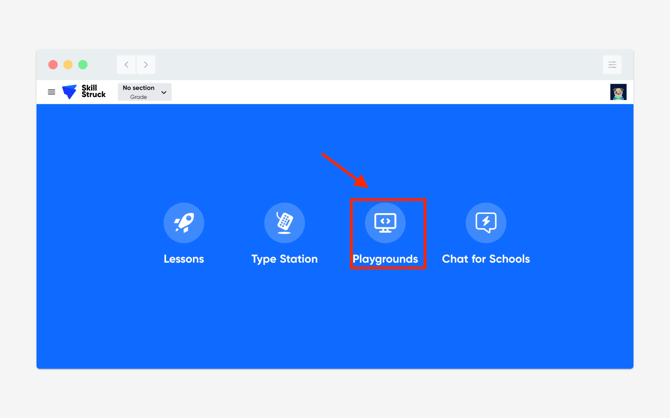
- Once the student has logged in, click Playgrounds.
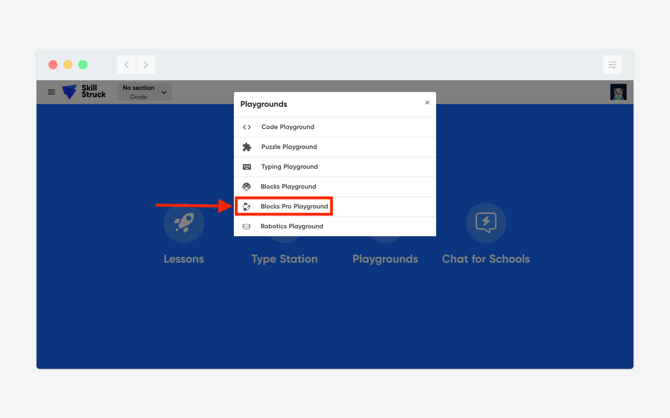
- From the Playgrounds options, select Blocks Pro Playground.
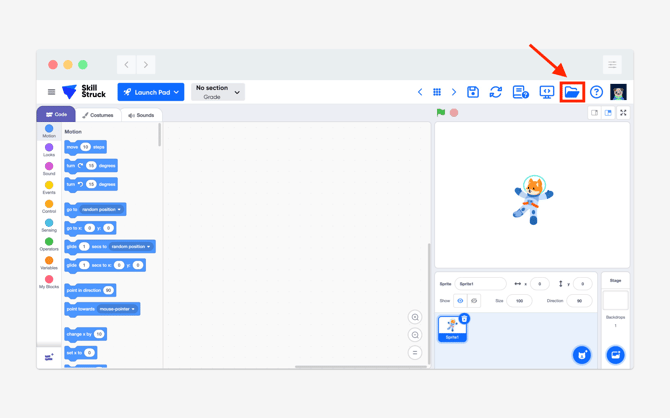
- From the Blocks Pro Playground, click on the Folder icon.
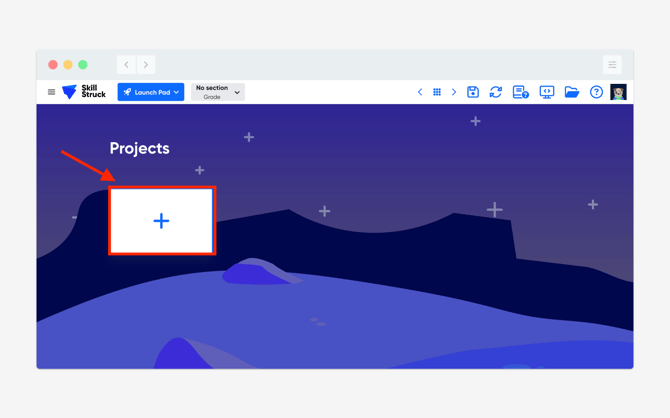
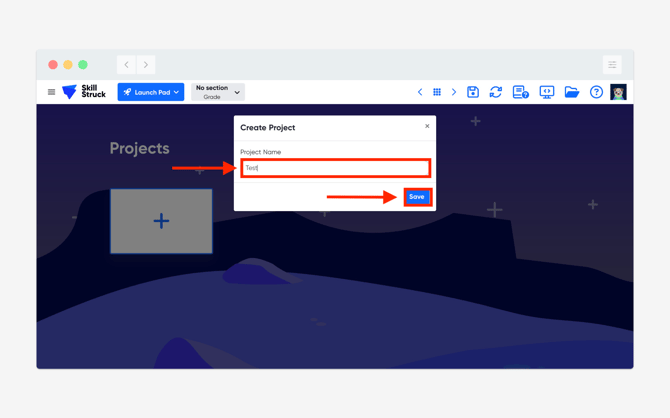
- From the Projects page, click on the + sign to create a new project/file.
- Provide the project a name and click Save.
- After saving the project file, you will be re-directed to the Playground. After adding code, remember to click save.
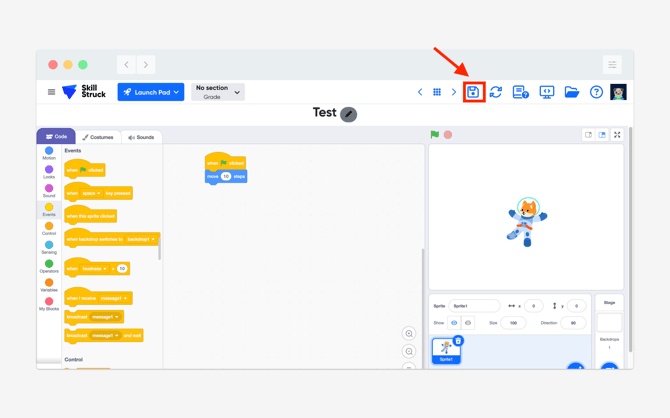
Students can also save their file by clicking on the save icon and it will prompt them to make a file. Please save regularly and often. The Playground environment does not auto-save.