![digital-skillstruck-brandmark-white-blue@192x.png]](https://support.skillstruck.com/hs-fs/hubfs/digital-skillstruck-brandmark-white-blue@192x.png?height=40&name=digital-skillstruck-brandmark-white-blue@192x.png)
Last updated - July 1, 2026
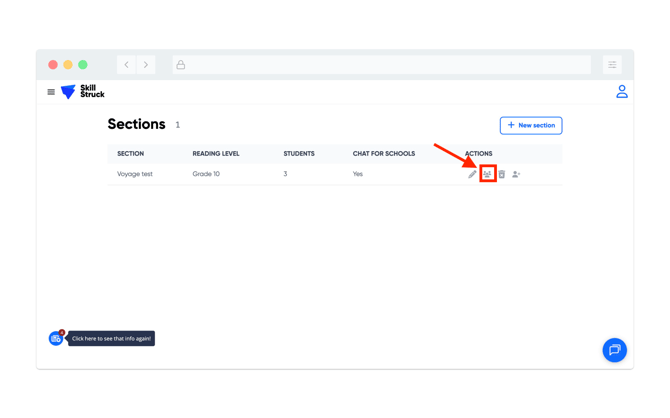
To remove a student from a Chat for Schools section, navigate to Sections from your Chat for Schools Educator Portal, and click on the Manage Students icon under the Actions column.
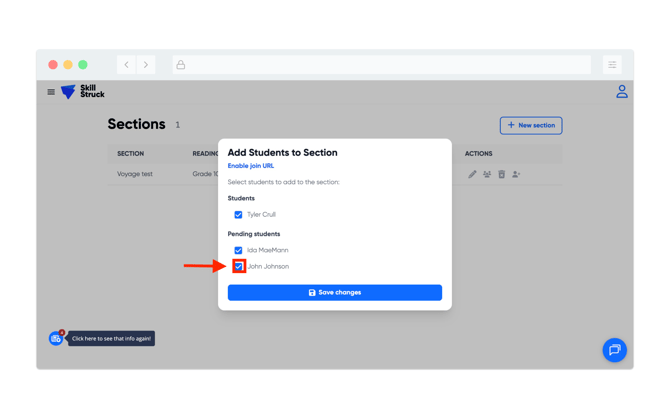
From the Manage Students page, uncheck the student that you would like to remove by clicking on the box next to their name.
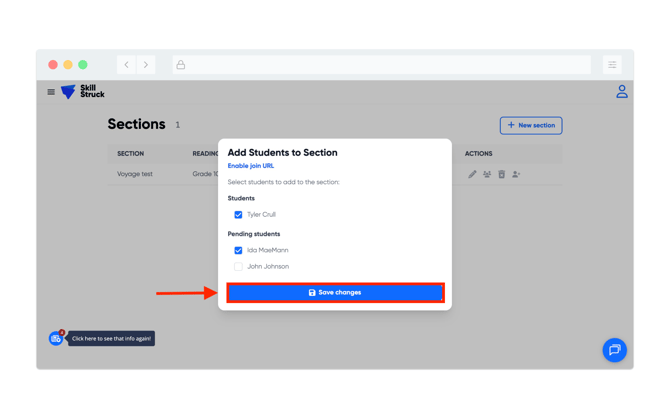
After you have un-selected the student to remove click on Save changes.
Please Note:
- Removing a student from a section will not delete their account or chat history.
- If your district uses an integrated system, completely removing a student from the Manage Students view must be done by your district administrator through the rostering integration.