![digital-skillstruck-brandmark-white-blue@192x.png]](https://support.skillstruck.com/hs-fs/hubfs/digital-skillstruck-brandmark-white-blue@192x.png?height=40&name=digital-skillstruck-brandmark-white-blue@192x.png)
Last updated - May 19, 2026
An assignment will need to be created and published first. To learn how to do so, please follow this article.
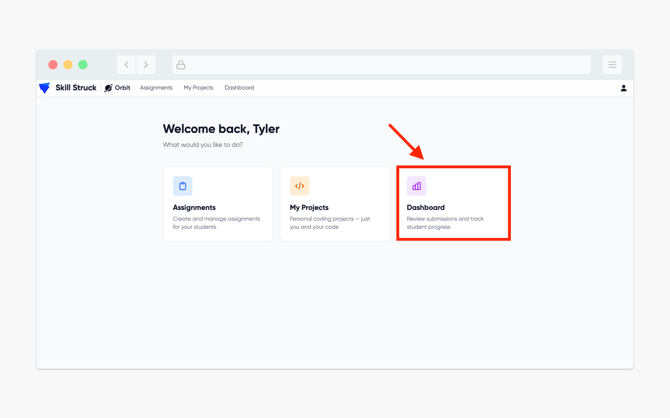
- From your Orbit homepage, click on Dashboard.
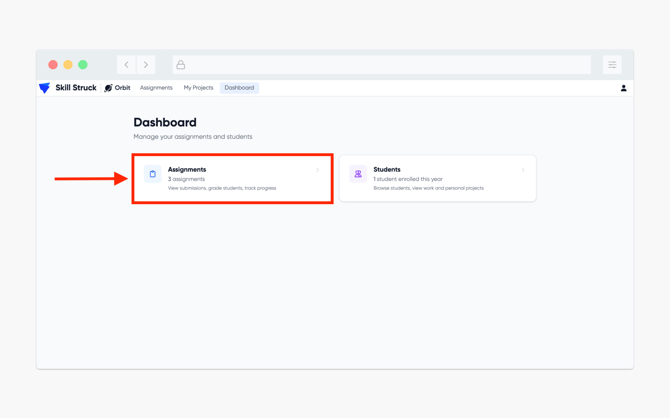
- From the Dashboard, click Assignments.
- Select the assignment that you wish to grade.
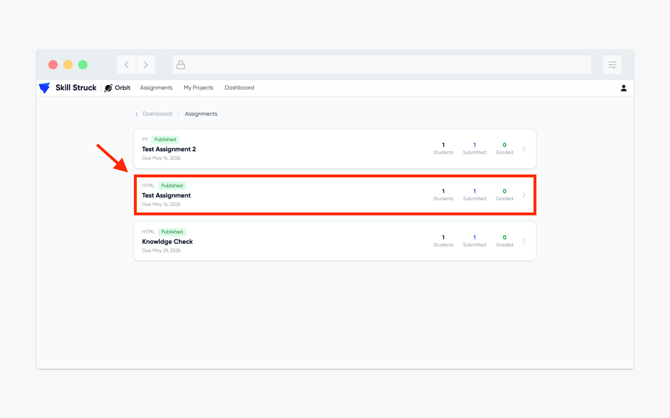
- Once the assignment has appeared the due date will appear next to the selected assignment. Further along it will show the number of students it was assigned to, how many of those students have submitted, and how many assignments have been graded. A list view will also show the Student, Status, Submitted, and Grade.
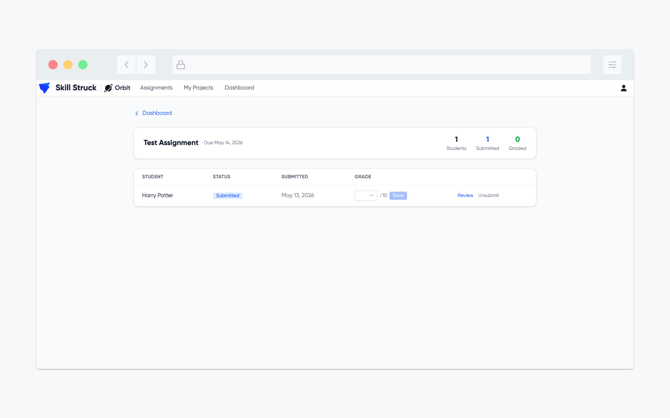
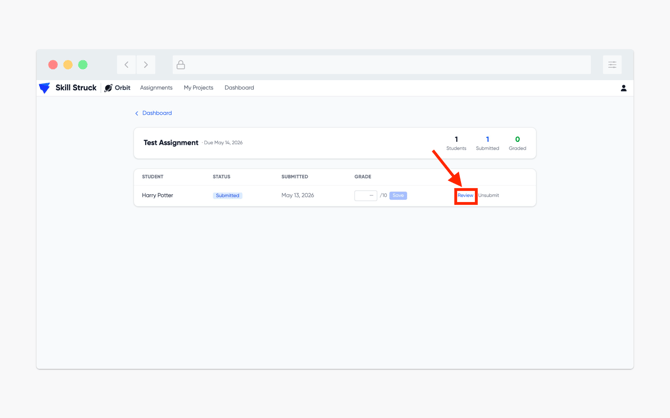
- To review a student's submission, click the Review button to the right of their name.
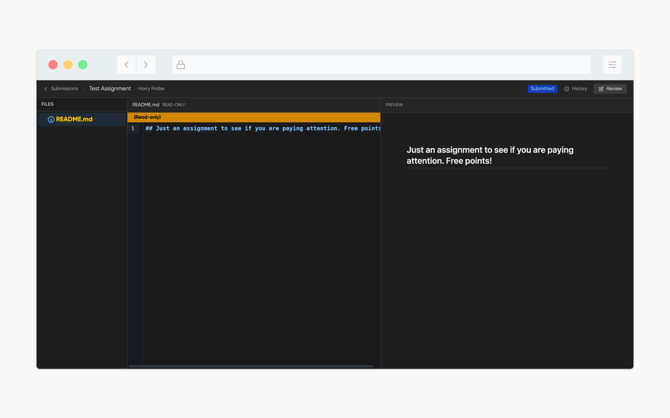
- You will now be in the student's submitted assignment. You will need to review their work manually.
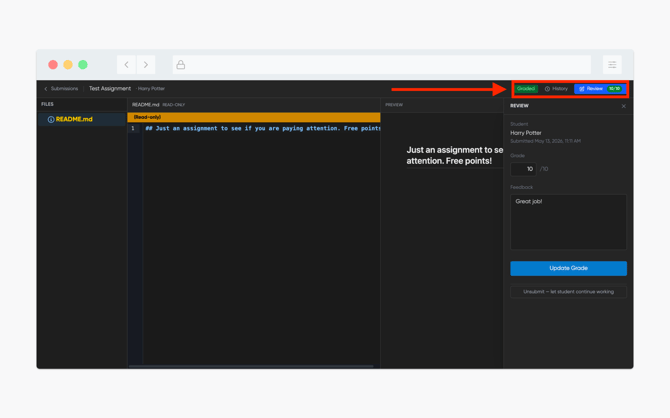
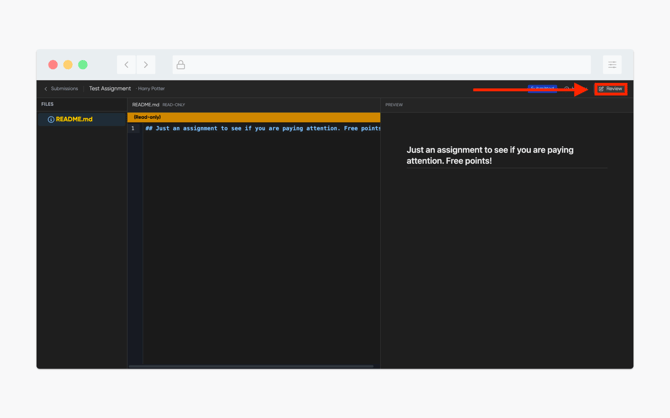
- After reviewing their work, you can give them a grade by clicking the Review button in the top right corner.
- The Review page will appear and allow you to enter in a Grade and Feedback.
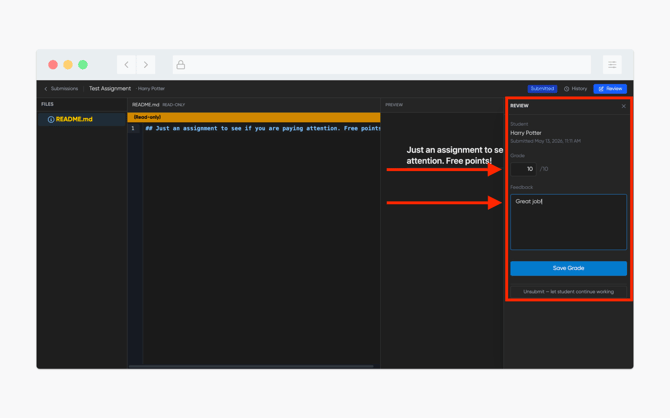
- Once those have been input, click Save Grade.
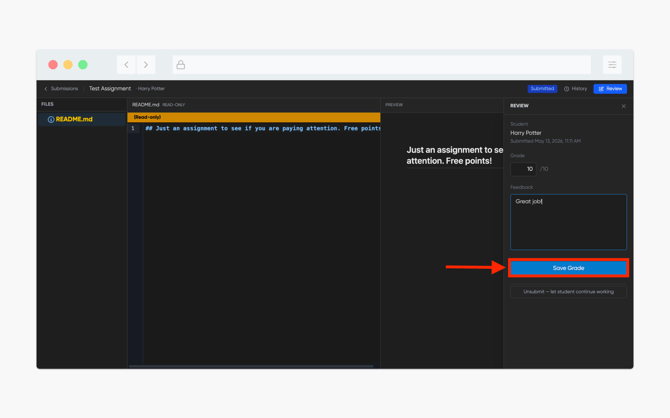
- A notification will appear on the top right corner of your screen indicating that the assignment has been graded and the assigned point value.