![digital-skillstruck-brandmark-white-blue@192x.png]](https://support.skillstruck.com/hs-fs/hubfs/digital-skillstruck-brandmark-white-blue@192x.png?height=40&name=digital-skillstruck-brandmark-white-blue@192x.png)
Last updated - October 8, 2026
For a more comprehensive break down, please follow this article.
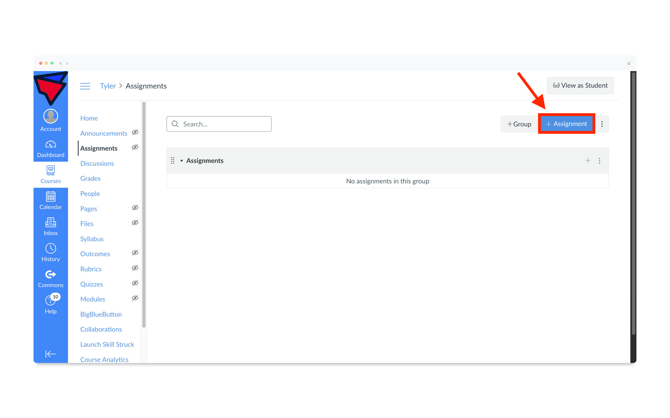
- From your Canvas Assignments page, click on the "+ Assignment" button.
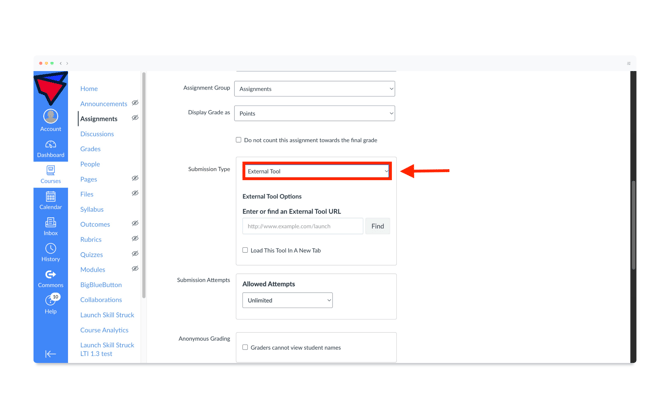
- Scroll down to the Submission Type area and select External Tool from the drop down.
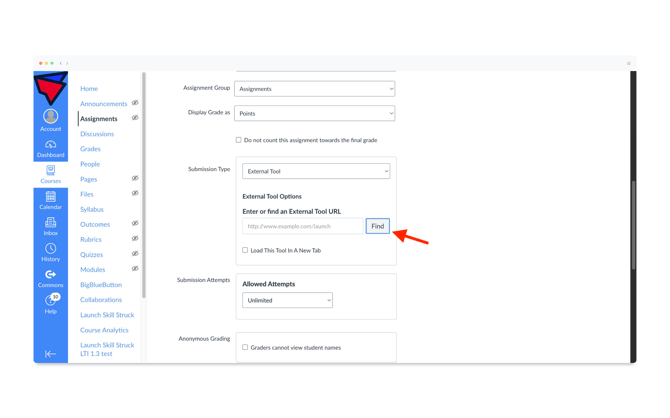
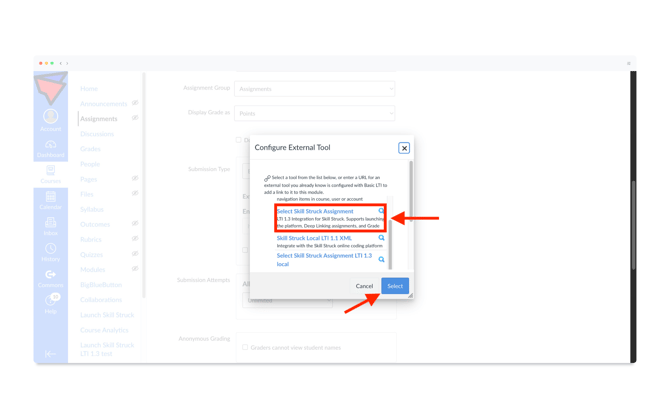
- Then click the Find button. A pop-up Configure External Tool screen will appear. Scroll and find the "Select Skill Struck Assignment" and click Select.
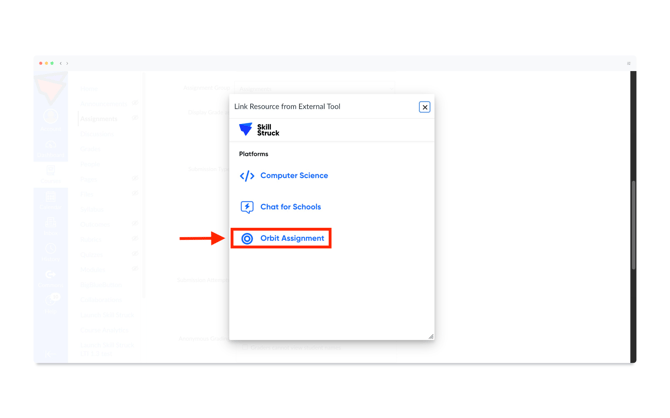
- Select Orbit Assignment.
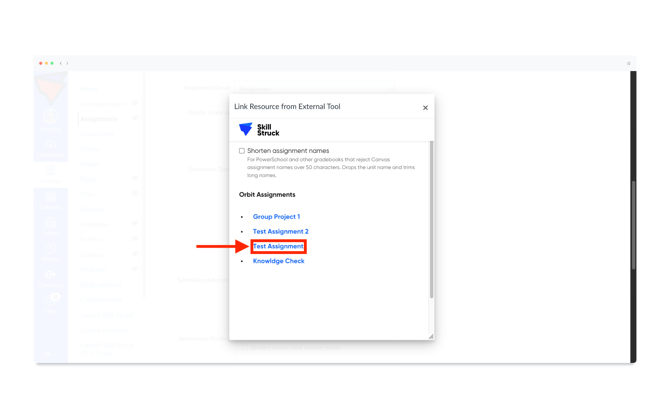
- Click on the Orbit Assignment you are looking to upload.
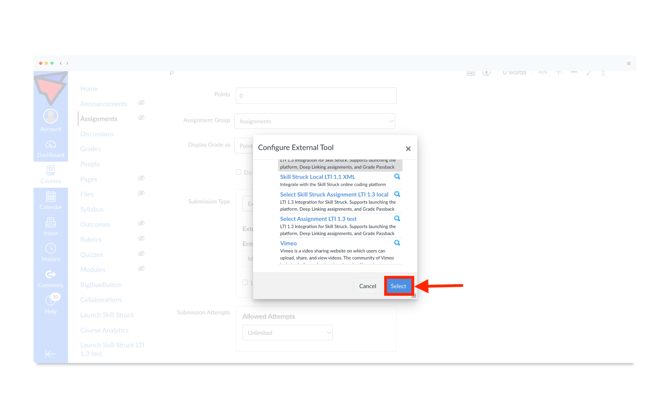
- Once the assignment has been chosen, click Select one more time.
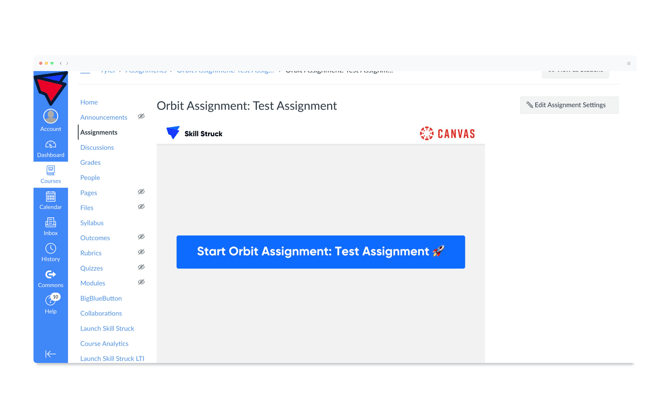
- Then click Save on the assigned Orbit Assignment.
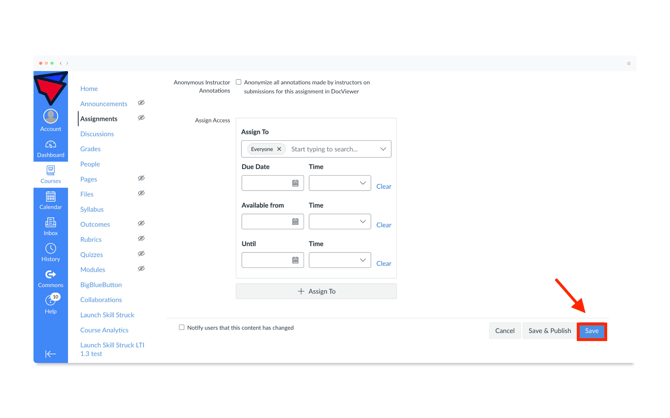
- The Orbit Assignment will now be viewable for the assigned section.