![digital-skillstruck-brandmark-white-blue@192x.png]](https://support.skillstruck.com/hs-fs/hubfs/digital-skillstruck-brandmark-white-blue@192x.png?height=40&name=digital-skillstruck-brandmark-white-blue@192x.png)
Last updated - October 8, 2026
Prior to being able to adding an Orbit Assignment to Google Classroom, your Google Classroom account needs to be connected to your Skill Struck account. Please follow this article to do so.
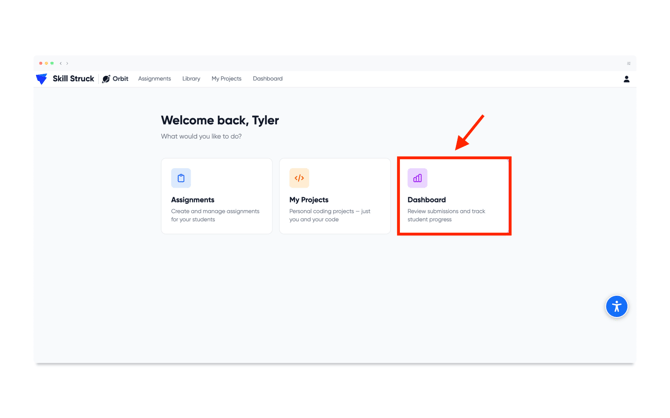
- From the Orbit main page in Skill Struck, click on Dashboard.
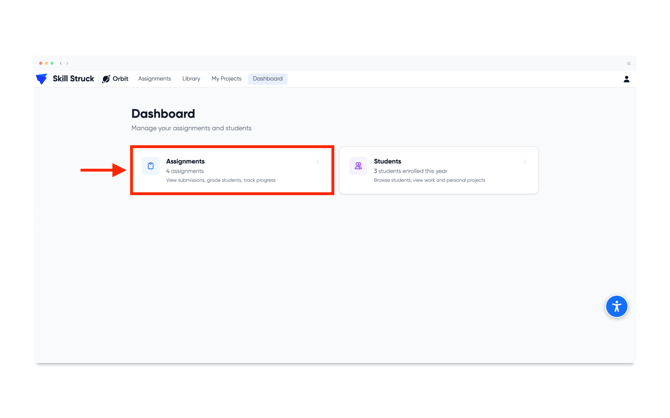
- From the Dashboard select Assignments.
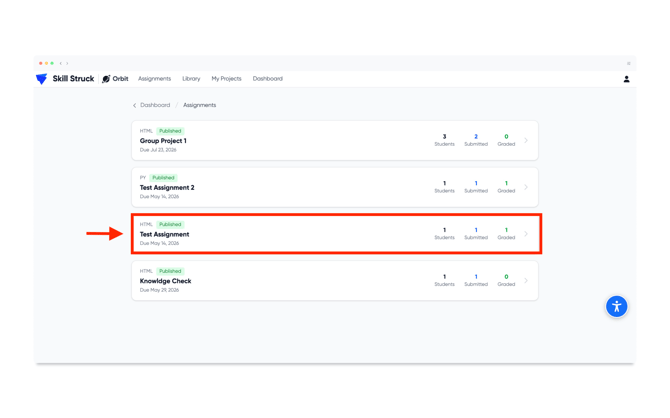
- Locate the assignment that you are wanting to include on Google Classroom and click on it.
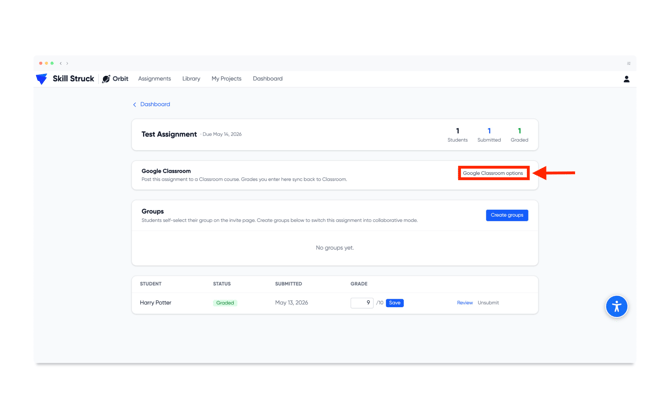
- Under the Google Classroom section, click on Google Classroom options.
- Select the course to add the assignment to from the drop-downand click Add to Google Classroom.
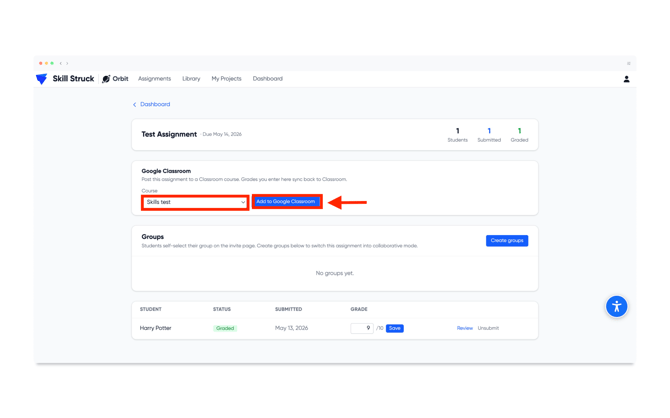
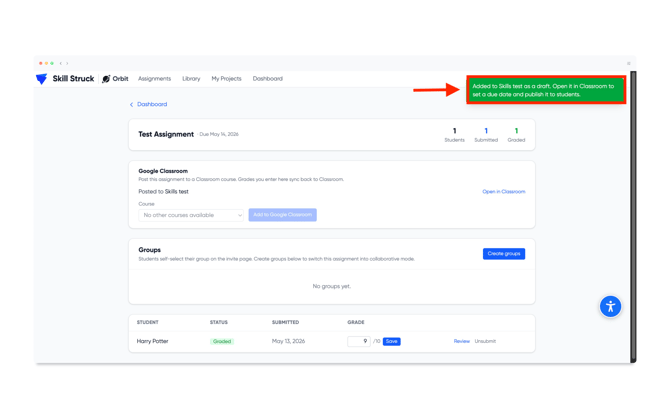
- Upon successful completion, a notification will appear in the top right of your screen. In Google Classroom it will require a due date and to be published to the students.