![digital-skillstruck-brandmark-white-blue@192x.png]](https://support.skillstruck.com/hs-fs/hubfs/digital-skillstruck-brandmark-white-blue@192x.png?height=40&name=digital-skillstruck-brandmark-white-blue@192x.png)
Last updated - August 31, 2026
You must create a custom assessment before you can share it. To learn how to create one, view this article.
Downloading the Custom Assessment
-
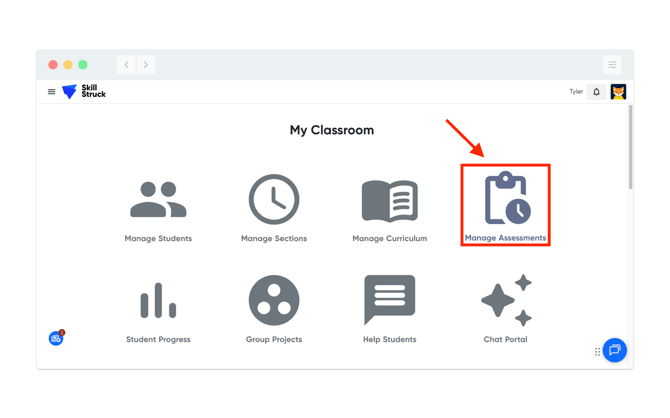
From your Educator Portal, click on Manage Assessments.
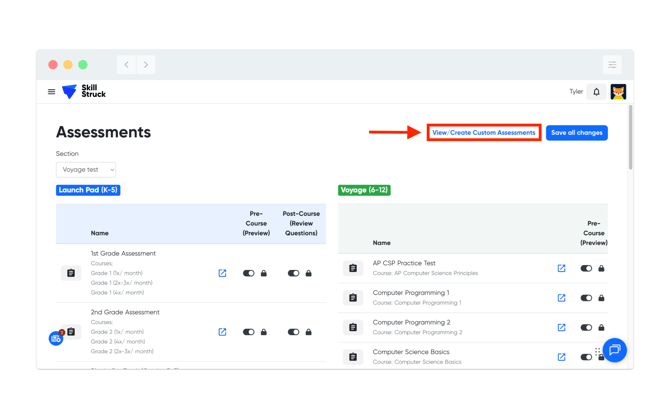
- From the Assessments page, click on View/Create Custom Assessments.
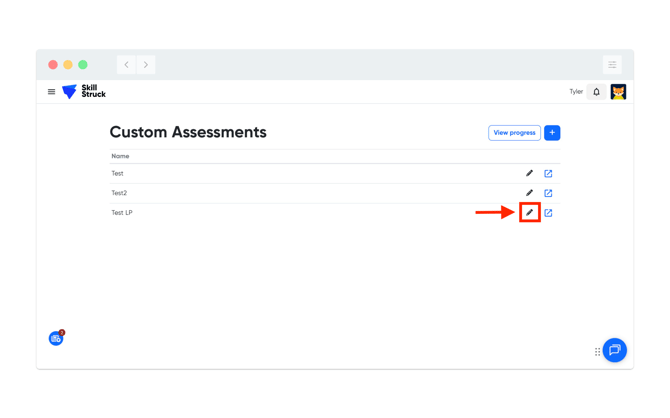
- Locate the Custom Assessment you are looking to share, then click the pencil icon corresponding to the assessment.
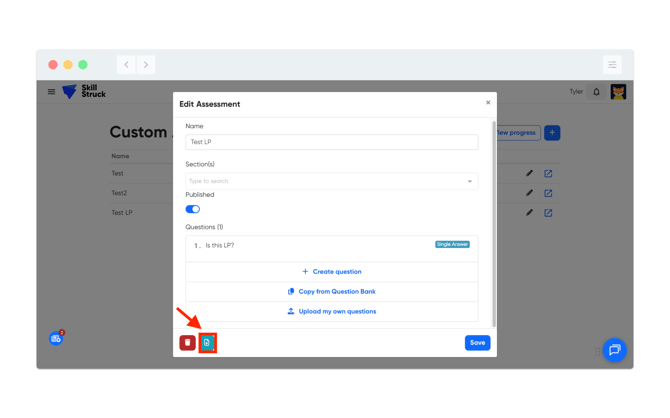
- On the selected Custom Assessment, click the download button. A downloadable JSON file should be downloadable.
-
This JSON file can be shared with other educators.
Uploading the Custom Assessment
- Once the educator received the JSON file, navigate to Manage Assessments from the Educator Portal.
- From the Assessments page, click on View/Create Custom Assessments.
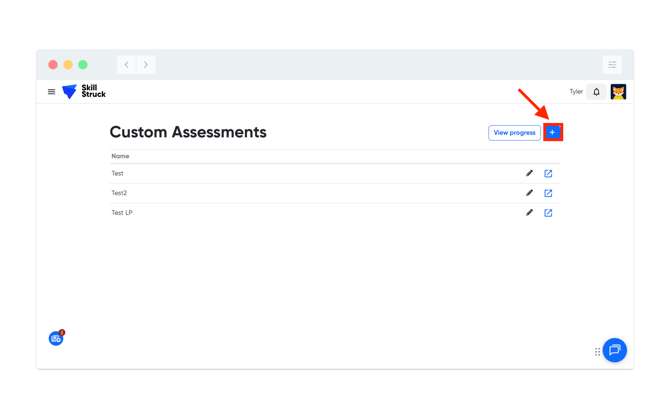
- From the Custom Assessment page, click on the + sign.
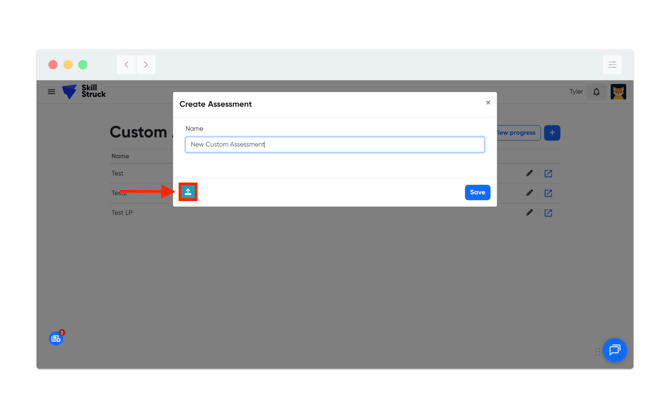
- Name the Custom Assessment and click on the upload button.
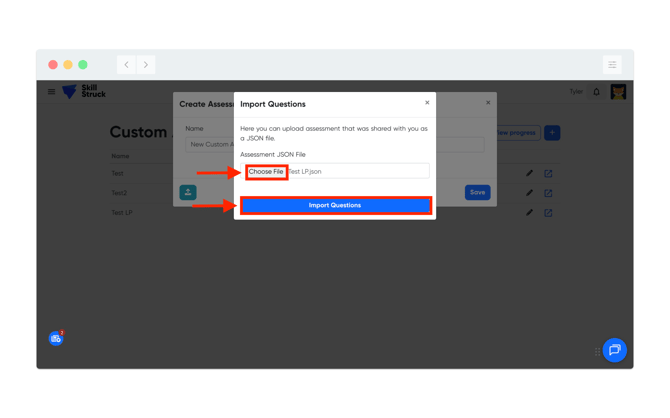
- This will prompt you to upload the JSON file, click choose file, then click Import Questions.
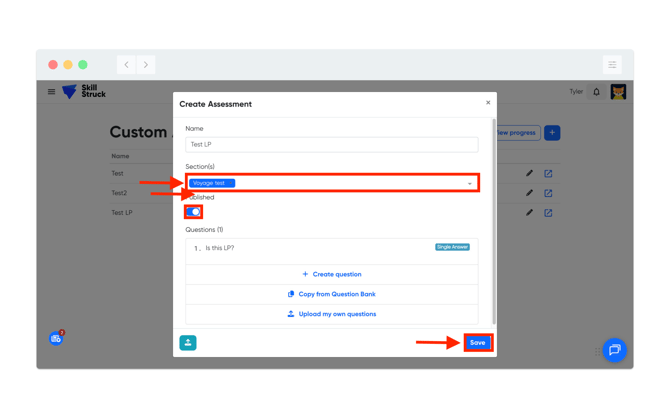
- Select the Section(s) to assign to, toggle the Publish to make it active, and click Save.
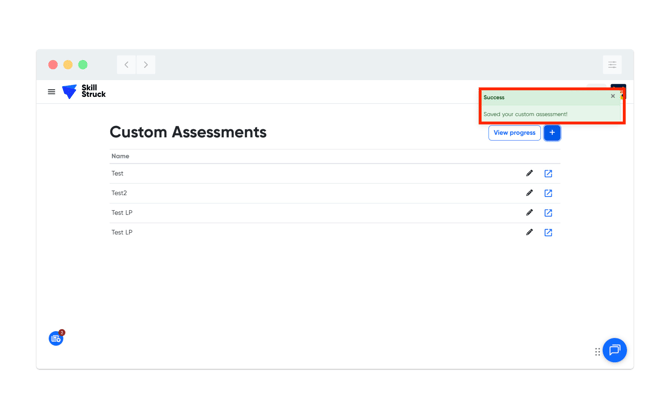
- Upon successful completion, a green notification will appear in the top right of your screen.