![digital-skillstruck-brandmark-white-blue@192x.png]](https://support.skillstruck.com/hs-fs/hubfs/digital-skillstruck-brandmark-white-blue@192x.png?height=40&name=digital-skillstruck-brandmark-white-blue@192x.png)
Last updated - September 22, 2026
How to Edit a Section
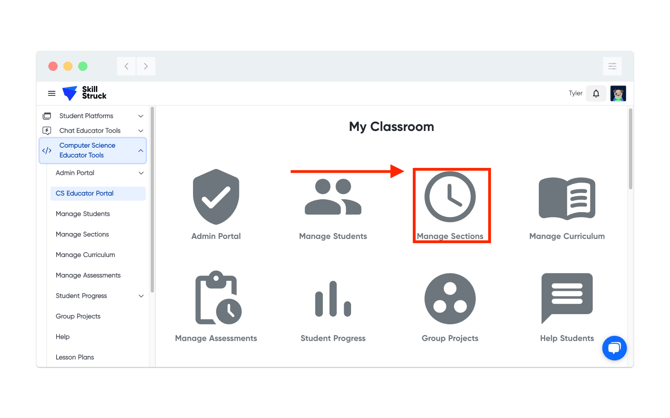
- From your Educator Portal homepage, click "Manage Sections."
- Navigate to the section that you would like to update and click the pencil icon to the left of its name.
-3.png?width=655&height=409&name=screenshot-rocks%20(13)-3.png)
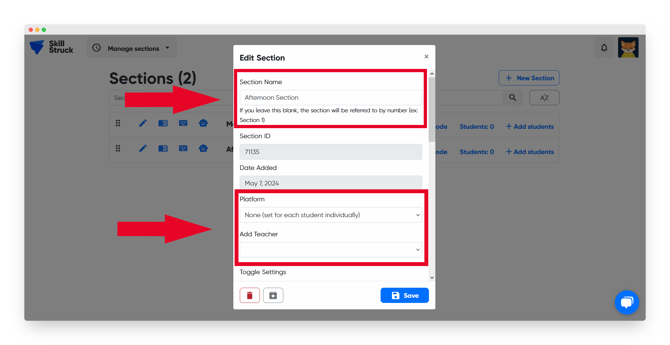
- Here, you have the option to update the section name, set the platform students are directed to, and add a co-teacher.
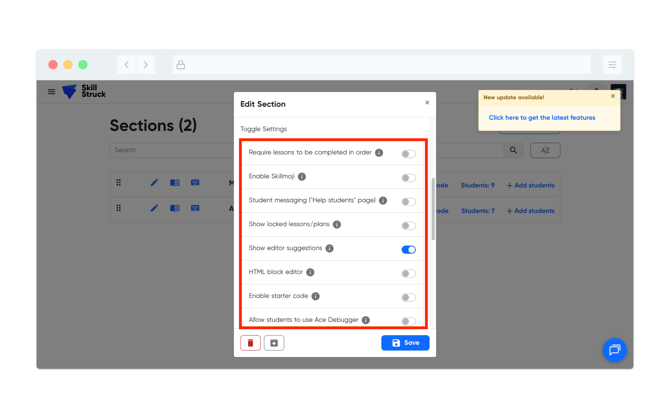
- You also have the option to toggle the following settings:
- Require lessons to be completed in order
- Enable Skillmoji
- Student messaging ("Help students" page)
- Show locked lessons/plans
- Show editor suggestions
- HTML block editor
- Enable starter code
- Allow students to use Ace Debugger
- Enable beta features
- Enable puzzle builder sharing
- Disable external pasting
- HTML Validator
- Input a start and end date. Once the end date is reached, the section will automatically archive. For more information on archiving a section, click here.
-2.png?width=655&height=409&name=screenshot-rocks%20(18)-2.png)
- Select a grade level.
-2.png?width=655&height=409&name=screenshot-rocks%20(19)-2.png)
- If you would like these settings to be applied to all of your sections, click the "Apply settings to all sections" toggle.
-3.png?width=655&height=409&name=screenshot-rocks%20(19)-3.png)
- Click the blue "Save" button to save your changes.
-4.png?width=655&height=409&name=screenshot-rocks%20(19)-4.png)
How to Delete a Section
You have the option to delete a section in your Educator Portal.
Deleting a section will move it to the Archived sections area, where it can still be restored later if needed. This preserves student progress data and gives you the ability to reactivate archived sections if needed.
- From your Educator Portal homepage, click "Manage Sections."
- Navigate to the section that you would like to update and click the pencil icon to the left of its name.
- Click the trash can icon to delete the section.
-2.png?width=655&height=409&name=screenshot-rocks%20(16)-2.png)
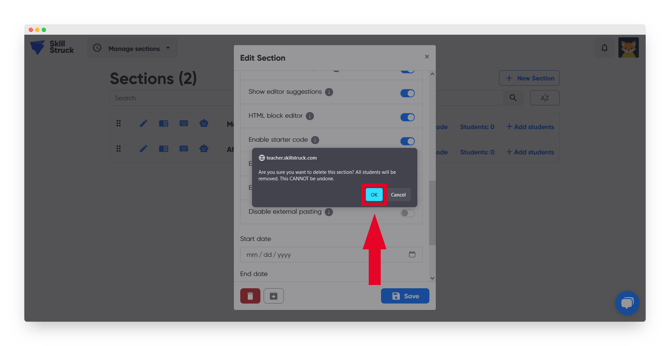
- In the window that pops up, click "OK."