![digital-skillstruck-brandmark-white-blue@192x.png]](https://support.skillstruck.com/hs-fs/hubfs/digital-skillstruck-brandmark-white-blue@192x.png?height=40&name=digital-skillstruck-brandmark-white-blue@192x.png)
Last updated - July 14, 2026
Many coding languages require the use of quotation marks for correct syntax. We have found that users who access Skill Struck using Chromebooks sometimes run into issues involving their quotation marks not being accepted by the auto-grader.
This is because the Chrome operating system usually defaults to an international keyboard, and the quotation marks produced by that keyboard setting are recognized as incorrect. The easiest way to make sure your student's code is accepted by the auto-grader is to change the keyboard settings on their Chromebook from International to English.
Note: Chromebook settings menus can vary slightly by model. If these steps don't match what you see on your screen, please refer to the Google Knowledge Base article for further assistance.
To change your keyboard settings, see the following instructions:
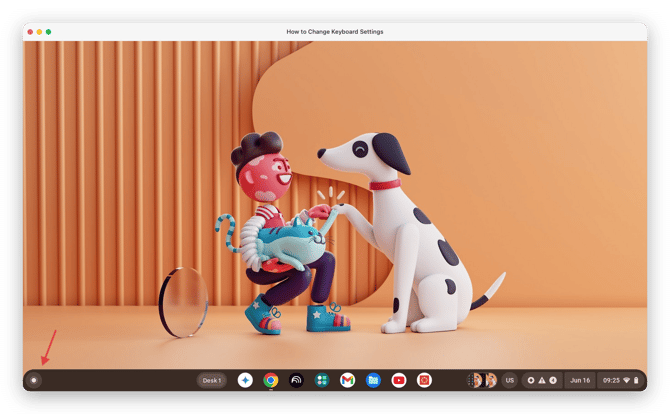
- Open the Settings panel on your Chromebook.
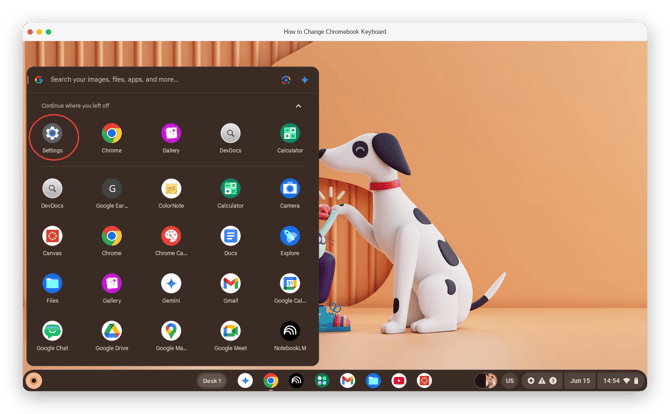
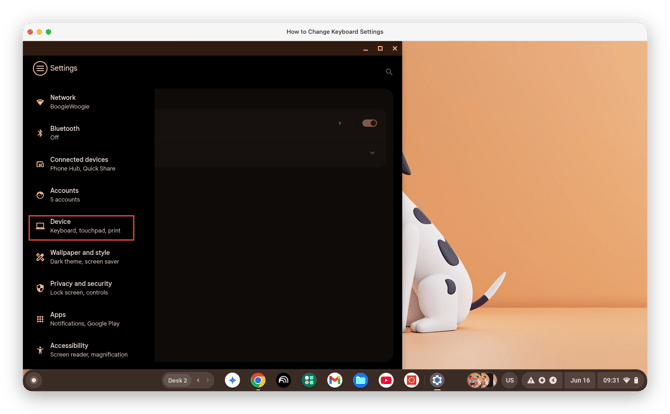
- Select Settings, and find the Device section in the side menu
- Click Keyboard and Inputs Settings.
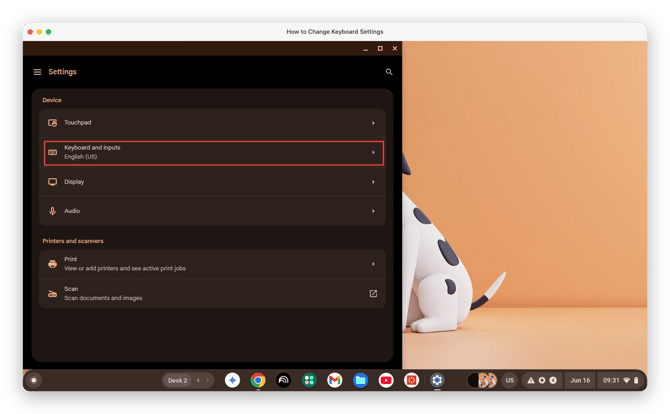
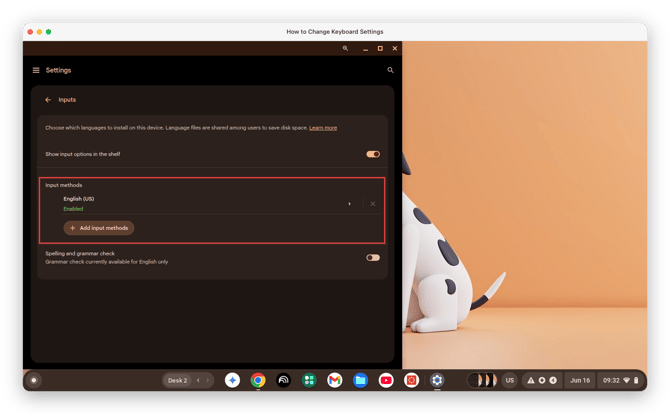
- Look for Input Settings towards the bottom of the screen.
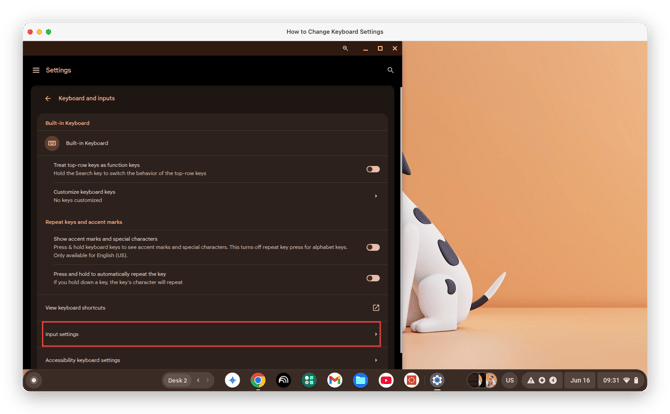
- Under Input Methods, ensure English (US) is listed. If not, add the keyboard and enable it.